


About this item
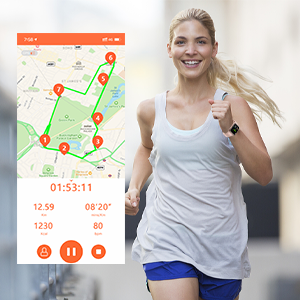
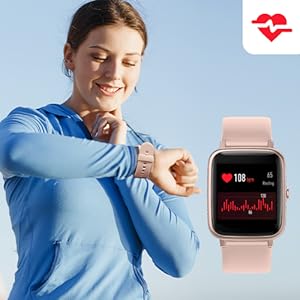
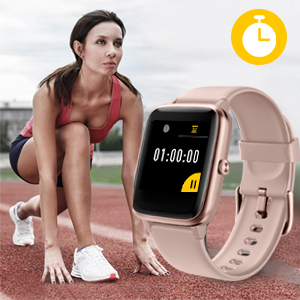
- 【Accurate Fitness Tracker Watch】- YAMAY watch will accurately track your all-day steps,calories consumption,distance traveled,heart rate.It also supports 9 sports modes to help you track your other exercise patterns,and will connect to smartphone's GPS to draw the route map in VeryFitPro app.
- ♥【 Smart Watches for iPhone Android Phones】- This watch is compatible with most iOS 8.0 & Android 4.4 above smartphones(not for pc or tablet).You can get call, text, calendar,email and messages alerts and read them diredctly on the watch.This watch can fit for 6.5 - 9.5 inch wrist(perimeter), suitable for men women and kids.
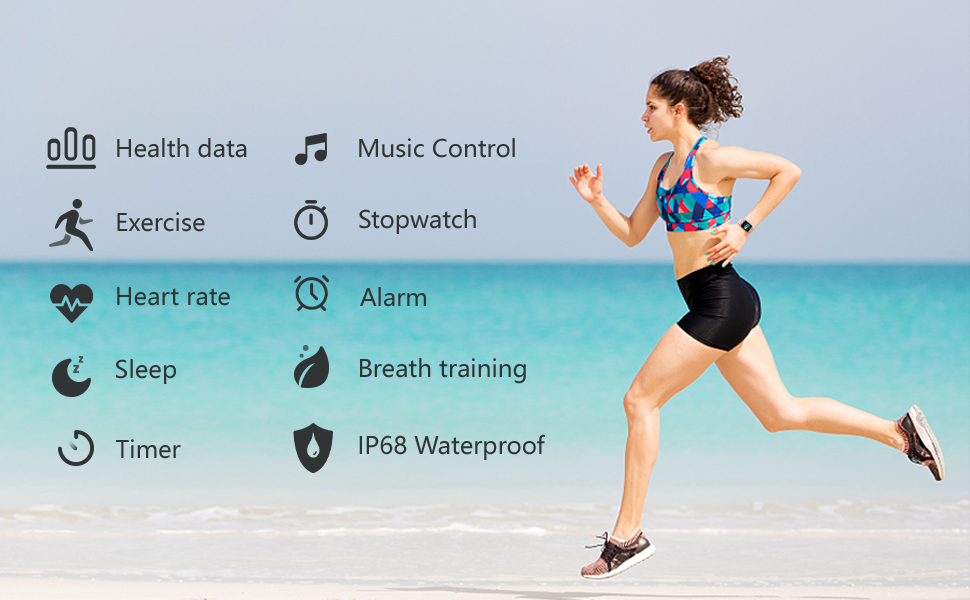
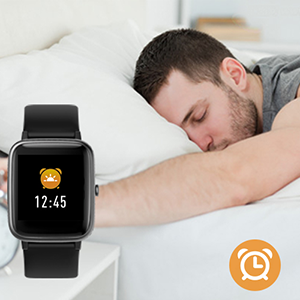
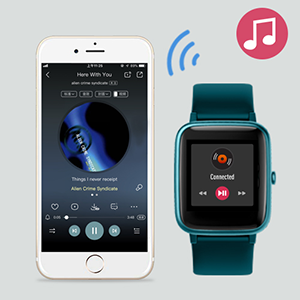
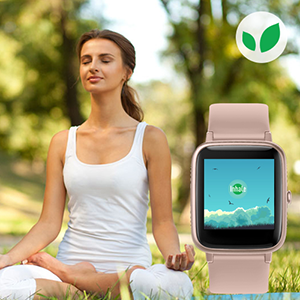
- ♥【 Sleep Tracker with More Practical Tools】- This watch will auto detect and track your sleep,and analyze your sleep quality.You can easily check the data in the verfitpro app.This watch also has many pratical tools,like alarm clocks,music controller,deep breath guide,sedentary reminder,stopwatch,timer.
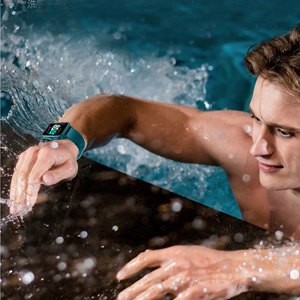
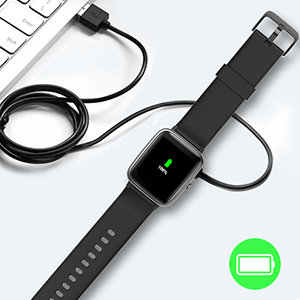
- ♥【 7+ Days Battery & Swimming Waterproof】- Compared with traditional watches,YAMAY watch enhanced the battery life a lot.With one single full charge,it can work 7-10 days.This watch also has IP68 waterproof standard,you can wear it with no worries when washing hands or swimming
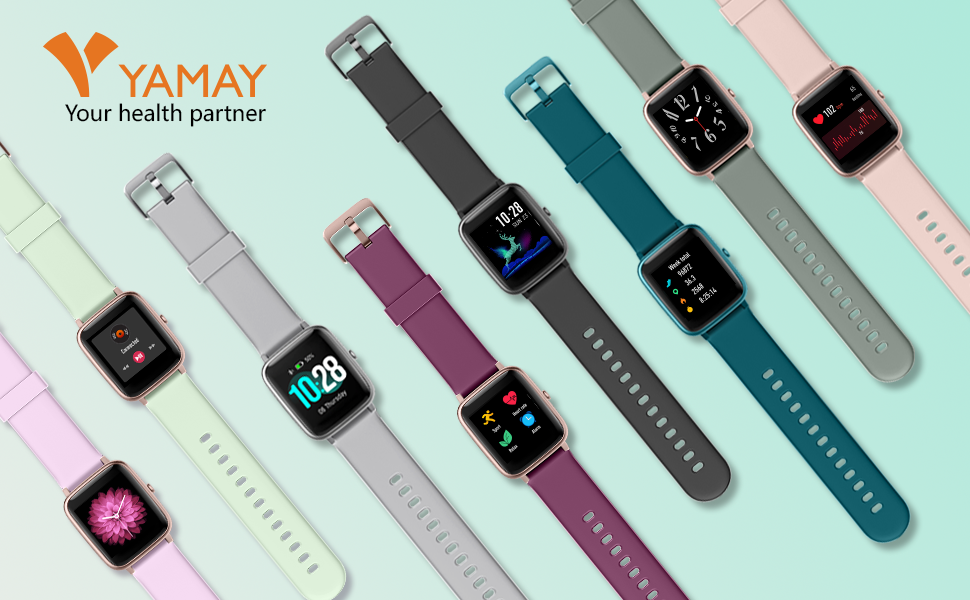
- ♥【 Stay Active and Stay Healthy】- This watch has accurate readings,practical tools,stylish looks,light-weight and comfortable wearing on the wrist,buy with affordable price,being a very good gift for friends and family members to help them Stay Active and Stay Healthy

Model Number: SW021(ID205L)
Dimension: Screen: 1.3 inch. Lug size: 19mm. Band width: 0.86 inch. Length: Fit for 6.2-9.2 inch wrist.
●●●●● [FAQ] ●●●●●
Q: How to bind the watch to your phone?(Set up)
1.Please scan the QR code on user manual to install the “VeryFitPro” app, or download it from App Store or Google Play.
2.Open the VeryFitPro app, allow the request to enable the Bluetooth function of your phone to connect the watch.
3.Select "ID205L" on the VeryFitPro app--> Click “Confirm Bind Device”. After binding, fill in your age/weight/height correctly.
4.Then a progress bar will appear at the top of the VeryFitPro app--> It will take 1-2 mins to sync the date/time and your info. The pairing will be done once it reaches 100%.
Q: Call/Text Messages/SNS Notification Troubleshooting.
For iPhone:
1.Please give Phone/Messaging/Call log permissions when you install the VeryFitPro app for the first time.
2.Turn on both “Call Alert” & “SNS Alert” function in the VeryFitPro app: Open app--> Click the “Device” below--> Turn on “Call Alert” & “SNS Alert”--> Switch on the app you need to get notification from--> Click the √ icon at the top right to save the settings.
3.Allow the VeryFitPro app to send notifications: Open your phone settings--> Find “VeryFitPro” app--> Notifications--> Click “Allow Notifications”--> Tick Lock Screen/Notification Center/banners, and tick “Always(Default)” in Show Previews.
*Note: The watch won’t receive any notification if messages/calls/SNS notifications didn’t appear on dropdown of your phone, make sure they are able to show up: Phone Settings-->Notifications> Find the app you need to get notification from-->Allow Notifications.(Same process as step 3)
4.If the watch still can’t receive any notification: Please delete the “ID205L” from the Bluetooth paired devise list from your phone--> Delete VeryFitPro app and download again--> Repeat the step #1-3.
For Android:
1.Please give Phone/Messaging/Call log permissions when you install the VeryFitPro app for the first time.
2.Turn on both “Call Alert” & “SNS Alert” function in the VeryFitPro app: Open app--> Click the “Device” below--> Turn on “Call Alert” & “SNS Alert”--> Switch on the app you need to get notification from--> Click the √ icon at the top right to save the settings.
3.Please allow the VeryFitPro app to send notifications and also keep running in the background of your phone. Otherwise it will be refreshed to cause the disconnection:
<1>Phone Settings--> Apps--> Find “VeryFitPro” app--> Turn on “Notification”--> Also allow the “Phone”&”Messaging” permission.
<2>Phone Settings-->Find “VeryFitPro” app--> Launch settings--> Switch on “Run in background”.
*Note: Please make sure your phone's dropdown can show you the message notification when it comes in.
4.If the watch still can’t receive any notification: Please delete the “ID205L” from the Bluetooth paired devise list from your phone--> Delete VeryFitPro app and download again--> Repeat the step #1-3.
Q: How to measure my heart rate more accurately?
1.Please make sure your personal info(age,height,weight) in VeryFitPro app are filled in correctly.(Go to VeryfitPro app -> User -> My info)
2.Please wear the watch one finger away from the wrist bone and adjust the tightness of the wristband to a comfortable position. Then keep breathing smoothly and stay still. It needs more time to measure more accurate data. This is normal that the heart rate data will be volatile at start. If you measure more times and test longer, you will find that the data will be more accurate.
Q: How to track my steps more accurately?
1.Please make sure your personal info(age,height,weight) in VeryFitPro app are filled in correctly.(Steps: Go to VeryfitPro app -> User -> My info).
2.This watch counts steps by a built-in 3D gravity sensor, it will record steps when you move your arm, so it may have some tolerance errors when using.Through many tests, the step data of our watch is almost the same as Apple watch/Fitbit. We also suggest you to walk 100 steps outdoors to test if it is accurate or not.(In order to lessen the data error, it won't count if you walk within 30 steps.)
Tips: If there is any problem when using the watch, please check the user guide below or feel free to contact the seller to get professional technical support and life-time after-sales service.(Go to Your Order--> Find the order ID in the list--> Click 'Contact with us')


No comments:
Post a Comment